EdTechPro Client Side Setup

3CX Client-Side (Set up on PC)
For any user using Portal on their computers, you will need to download the 3CX app.
In the users 3CX Web Client, choose the QR code at the top right of the page, , this will provision the 3CX windows app you’ve just downloaded.

Follow steps 1 & 2 from the on screen instructions.
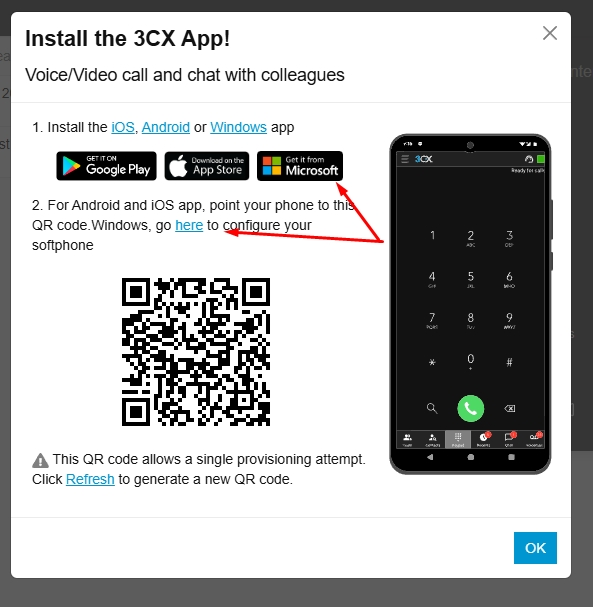
Once you have provisioned the 3CX app. Choose the Settings icon.
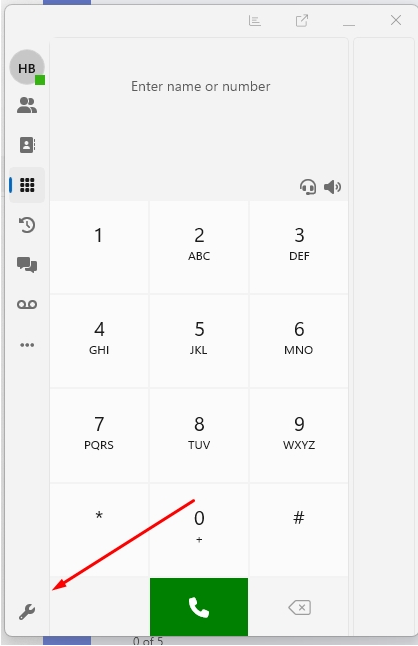
Complete the three option changes below:
Settings → General → Deskphone Control to the Handset the Staff member uses (e.g. Yealink)
Settings → Integration → CRM Check the box to enable the function
Settings → Integration → CRM select “Open Contact URL using Server-Side CRM Integration”
That’s it! You have successfully set up the EdTechPro Portal Integration.
Want a feel for our products? There are more videos available on our Yellowgrid YouTube Channel.
Reseller application – Click HERE to apply
Looking for more information? No problem, contact us on 03330144340 or sales@yellowgrid.co.uk.